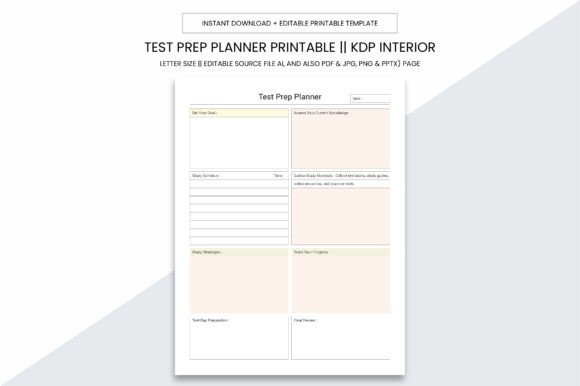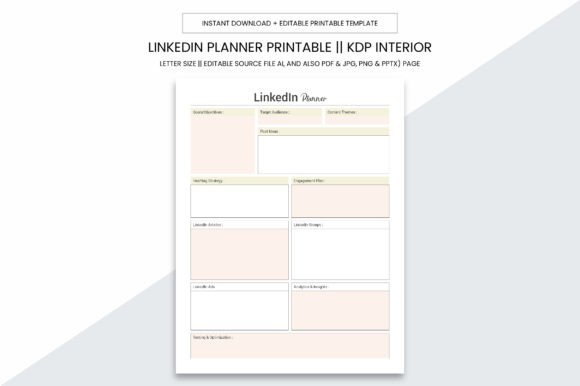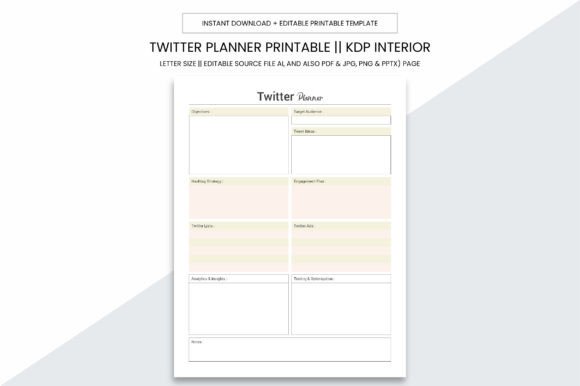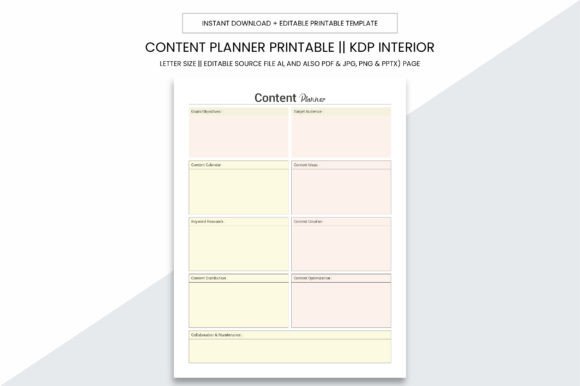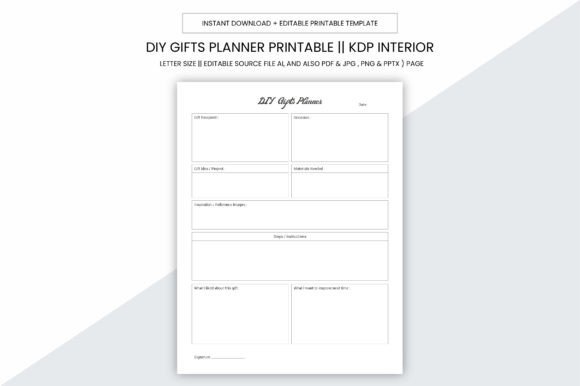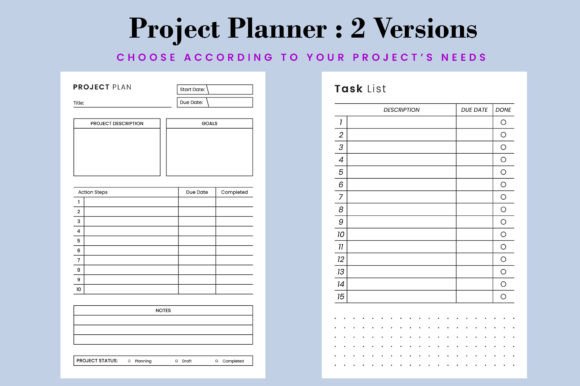
Project Planner Printable. KDP Interior
If you're building a low-content or no-content publishing business on Amazon KDP, the Project Planner Printable. KDP Interior isn’t just another template—it’s a tested, production-ready foundation for launching planners that sell. Unlike generic PDFs cobbled together from free design tools, this interior is built with real-world KDP constraints in mind: correct trim size, bleed-free layout, 300 DPI resolution, and vector-based flexibility. It’s designed for creators who want speed *and* reliability—not guesswork.
Why This Isn’t Just “Another Planner Template”
The Project Planner Printable. KDP Interior stands out because it solves three common bottlenecks at once: time, compatibility, and compliance. Many sellers waste hours resizing pages, fixing margins, or re-exporting files only to get rejected by KDP’s preflight checks. This interior skips those steps. It’s been validated across multiple live KDP uploads—100 pages, 110 pages, and 120 pages—all at the standard 6×9 inch trim size, with no bleed required. That means your interior file lands on KDP’s system ready for review, not revision.
It’s also built for adaptability. The editable EPS source files let you adjust spacing, fonts, or section headers without pixelation. Need to add your brand color scheme? Resize a weekly grid to fit tighter deadlines? Swap icons or logos? Because it’s vector-based and Adobe Illustrator–compatible, you’re not stuck with static layouts. And if you prefer working in Canva or Affinity Designer, the transparent-background PNG and high-res JPG bonus files give you clean fallback options for quick tweaks.
Common Mistakes People Make—And How to Avoid Them
Mistake #1: Assuming “printable PDF” means “KDP-ready.”
Not all printable planners are built for Amazon’s strict formatting rules. Some use 8.5×11 layouts, include bleed when it’s unnecessary, or export at 72 DPI—guaranteeing rejection. The Project Planner Printable. KDP Interior avoids this by shipping with precise KDP-tested specs: 6×9 inches, no bleed, 300 DPI, and CMYK-safe colors. Before uploading, always verify your final PDF matches these settings—not just the preview thumbnail.
Mistake #2: Overlooking page count flexibility.
A 100-page planner may seem sufficient—but what if your audience prefers more reflection space, or needs room for quarterly reviews? Choosing a rigid interior locks you into one format. This product includes three verified versions (100, 110, and 120 pages), so you can test which length resonates best with your niche—without redesigning from scratch. For example, educators often prefer 120-page versions for lesson planning; freelancers tend to choose 100-page for daily task tracking. Start with one, then scale intelligently.
Mistake #3: Editing without preserving print integrity.
When people open an editable file in non-vector software (like basic PDF editors or Word), they risk distorting line weights, misaligning grids, or introducing blurry text. That’s why the original EPS files matter—they retain crispness at any scale. If you’re adding custom headers or changing date formats, do it in Illustrator, InDesign, or a vector-capable tool—not a raster-based editor. Bonus tip: Always export your final interior as a PDF/X-1a or PDF/X-4 preset to preserve fonts and transparency correctly.
What to Check Before You Upload—or Scale Your Business
Before hitting “Publish” on KDP, run through this quick checklist:
- Trim size match: Confirm your KDP book setup uses exactly 6×9 inches—not “6x9” typed loosely or rounded up from 6.14×9.21.
- Page count consistency: Ensure your interior PDF has the exact number of pages selected in KDP (e.g., 110 pages = 110 interior pages, excluding cover). Blank pages count.
- Font embedding: If you’ve added custom fonts, make sure they’re embedded in the PDF—not just installed on your machine. Unembedded fonts render inconsistently or default to Times New Roman on KDP’s servers.
- Margin safety: Even without bleed, keep critical content (like page numbers or headers) at least 0.25 inches inside the trim edge. KDP’s cutting tolerance varies slightly per batch.
- File naming: Use clear, professional names like ProjectPlanner_Interior_110pg_6x9.pdf—not “final_v3_edit2_FINAL.pdf.” It saves time when managing multiple SKUs.
Realistic Use Cases—Beyond the Obvious
This interior works especially well when paired with intentional positioning—not just as a standalone planner, but as part of a cohesive offer. A freelance web designer might bundle it with a “Client Project Kickoff Kit,” using the editable sections to insert discovery questionnaires and milestone trackers. An educator could adapt the log-book layout into a “Student Progress Tracker,” adding grade columns and behavior notes—all while keeping the same clean, KDP-compliant structure.
It’s also ideal for testing niches fast. Instead of designing ten different interiors from scratch, use this as your base and rotate covers, titles, and subtitles: “Remote Team Project Planner,” “Creative Agency Workflow Log,” “Freelance Developer Sprint Tracker.” Each variation takes under an hour to produce—and since the interior is already KDP-tested, your launch velocity stays high without sacrificing quality.
Final Thought: Speed Shouldn’t Mean Sacrifice
Building a sustainable KDP business isn’t about flooding the catalog with low-effort books—it’s about launching thoughtfully designed tools that solve real problems. The Project Planner Printable. KDP Interior supports that goal by removing technical friction, not creative control. You still choose your audience, voice, and value—but you don’t have to reinvent the wheel every time you need a polished, professional interior.
So if you’ve hit a wall with inconsistent formatting, rejected uploads, or slow turnaround between idea and publish date—this isn’t just another download. It’s your next reliable step forward.